⬅ Support Hub
APN Walkthrough
How to Execute University Applications
Step 1
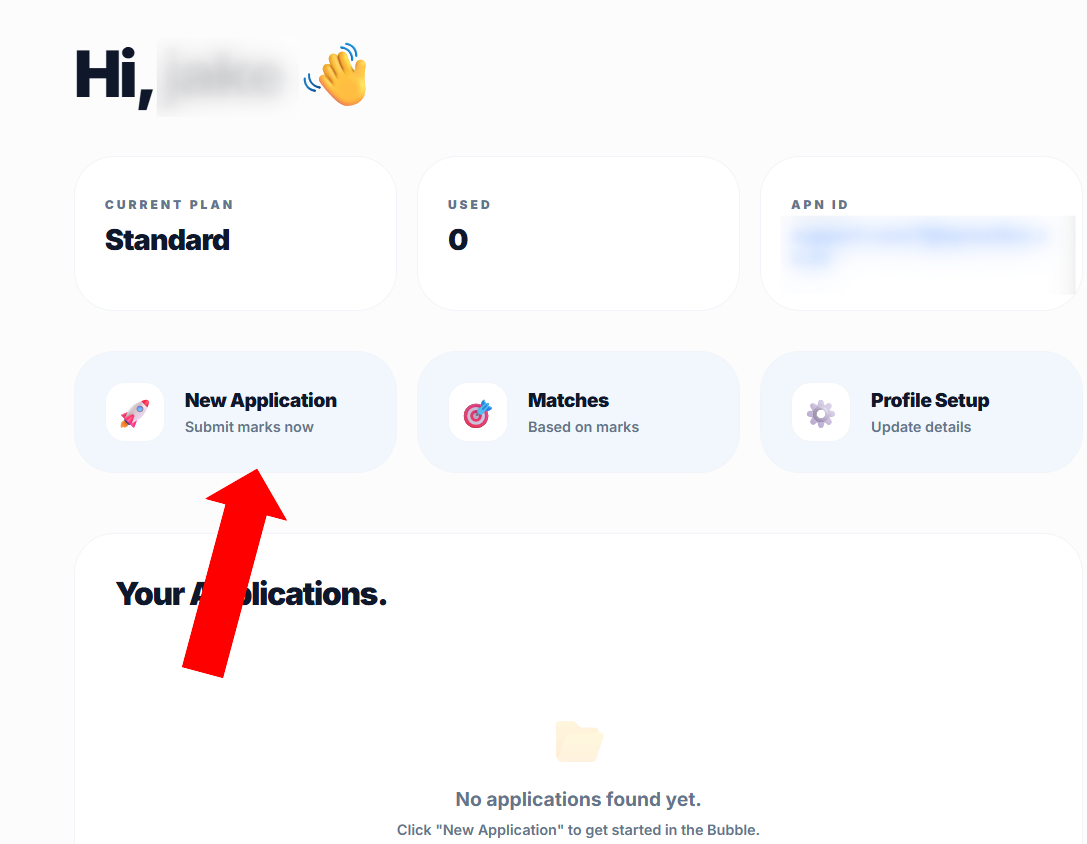
Navigate to Pathways
Once your account is unlocked, head to the Apply section. From there, click on Standard, select University, and finally click on Public to open the main application portal.
Step 2
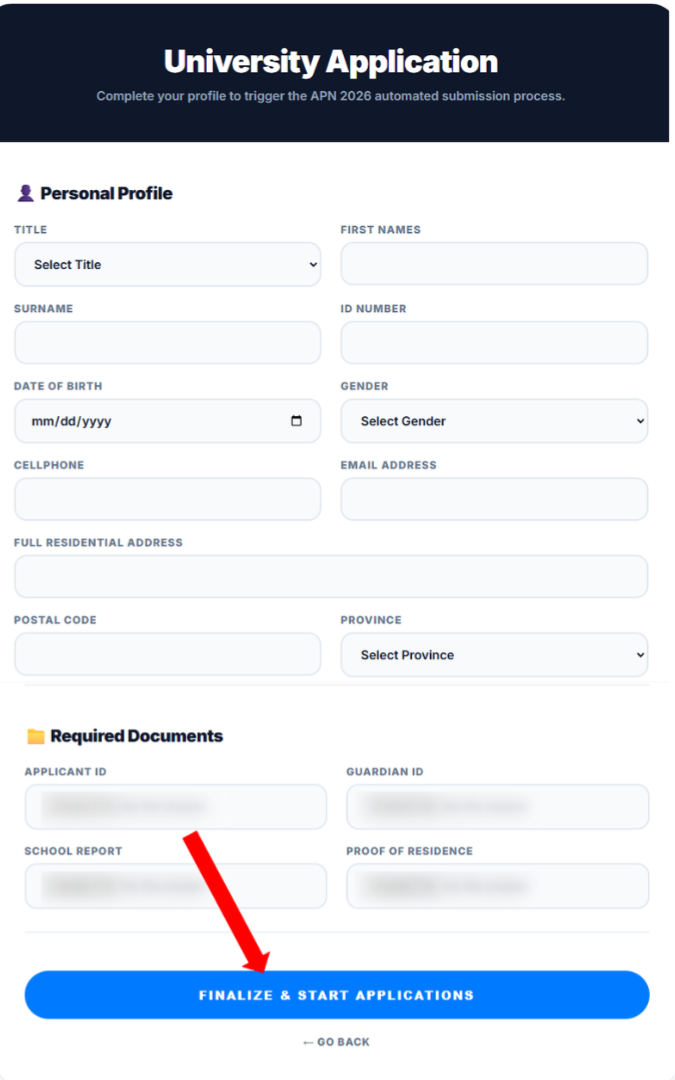
Complete the Master Form
You will now see the Master Form. This is a huge, detailed document where you fill out all your academic and personal information. Take your time, fill it out completely, and click Agreed at the bottom when finished.
Step 3
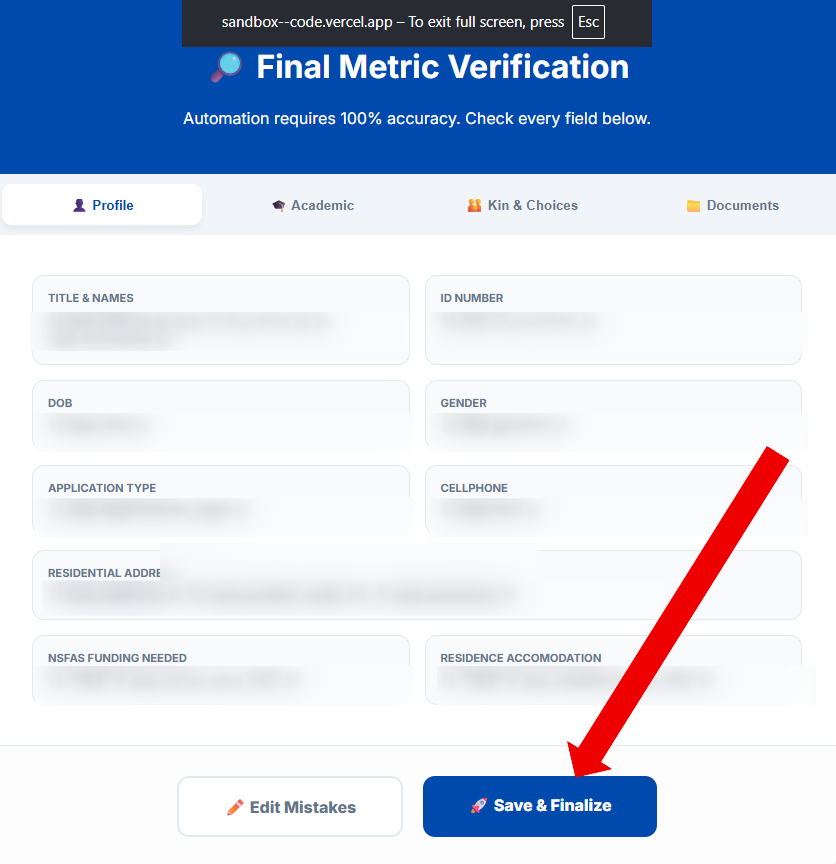
Review & Recap
Next, the system will generate a full recap of your form. This is your chance to see exactly what happened and spot any mistakes. If everything looks perfect, click Yes to lock in your data profile.
Step 4
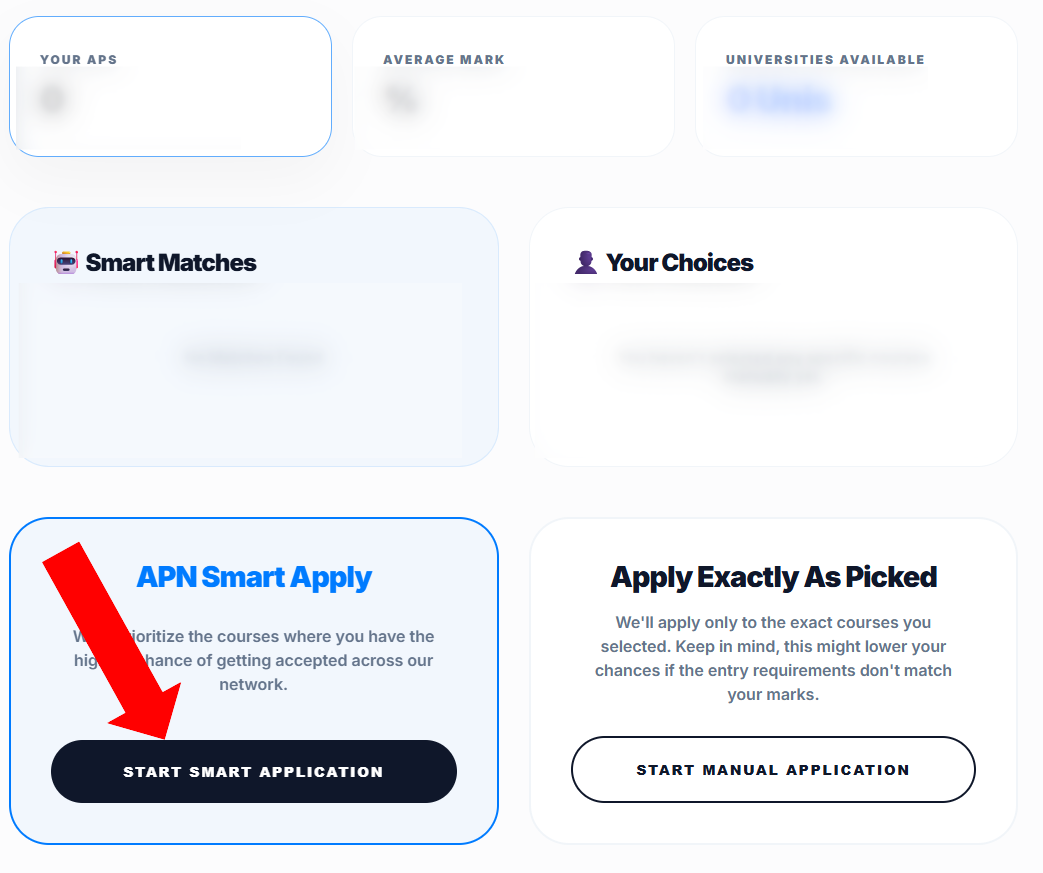
Get Course Recommendations
Click on Recommendations. Depending on the time of year, Pulse will show you tailored course suggestions (Note: Pulse availability closes near the end of the year). You can select our recommended courses, or choose your own manually.
Step 5
Ignite the APN Bot
With your courses selected and your profile complete, it's time to launch. Click Start Automation (or Start APN Bot). The engine will now wake up and automatically spread your applications to your selected universities!