⬅ Support Hub
APN Walkthrough
How to Setup & Verify Your Account
Step 1
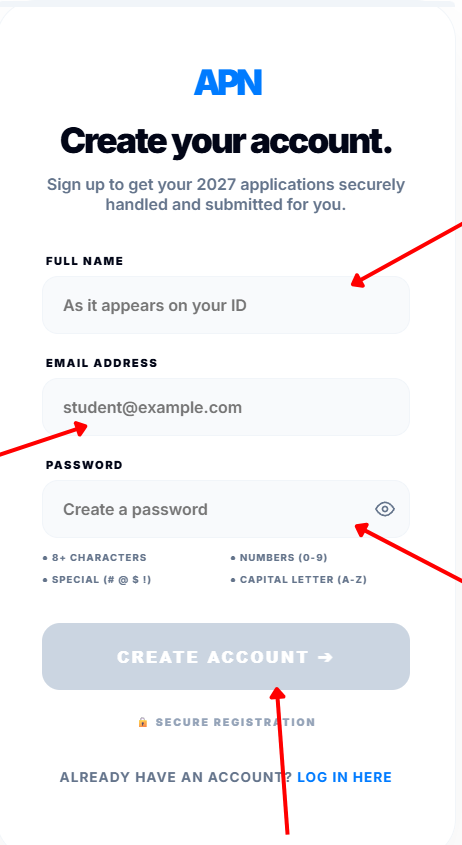
Enter Your Details
Add your name, surname, and email address, then click Create. You will then see a page asking you to check your email.
Step 2
Check Spam & Mark "Not Spam"
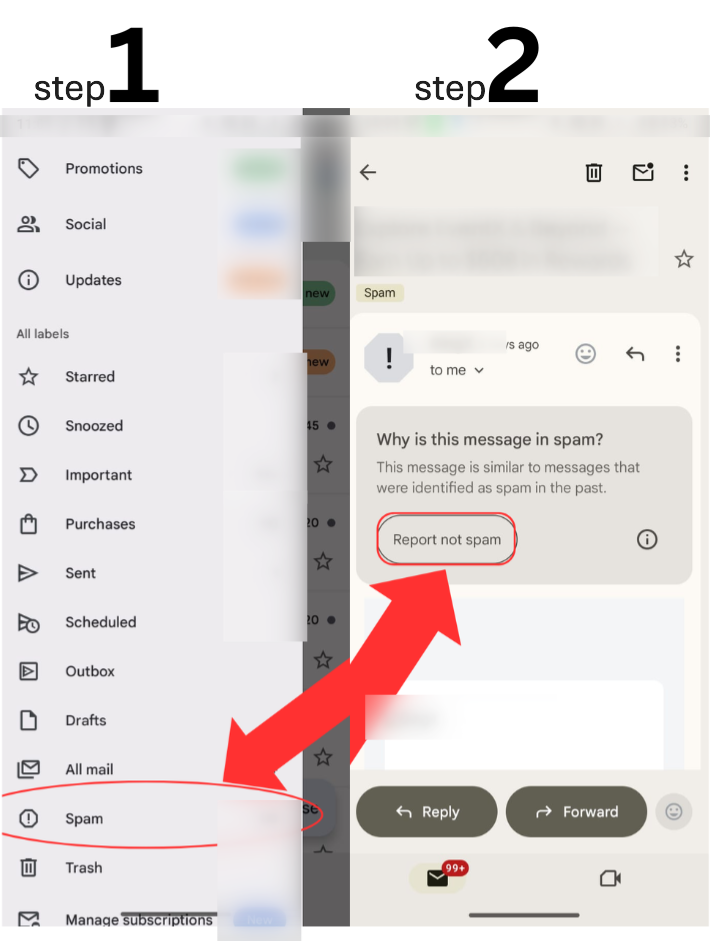
Go to your email and look in your Spam folder. You will always get an APN email from support@apnonline.co.za.
CRITICAL: Before doing anything else, mark this email as "Not Spam" so you can easily receive your 2-step verification code in the next steps.
CRITICAL: Before doing anything else, mark this email as "Not Spam" so you can easily receive your 2-step verification code in the next steps.
Step 3
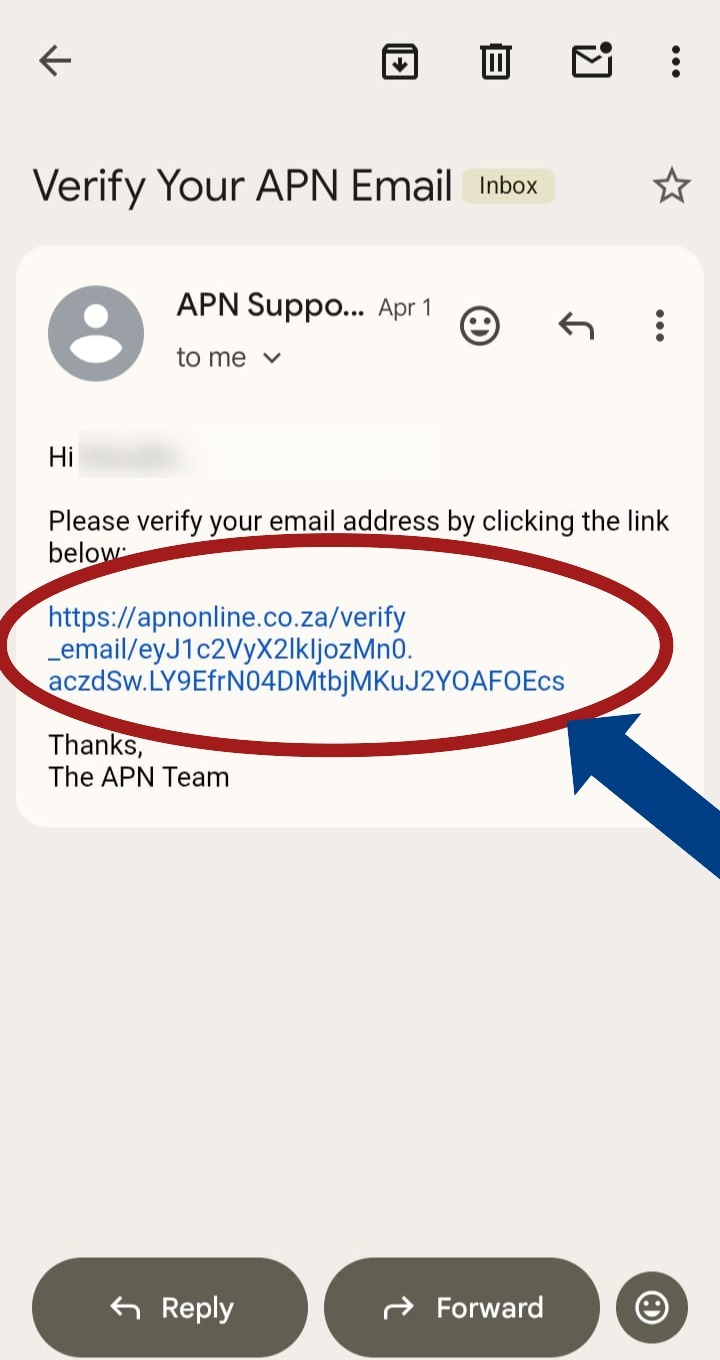
Click the Verification Link
Open the email and click the link inside to verify your account.
Step 4
Sign In & Request 2-Step Code
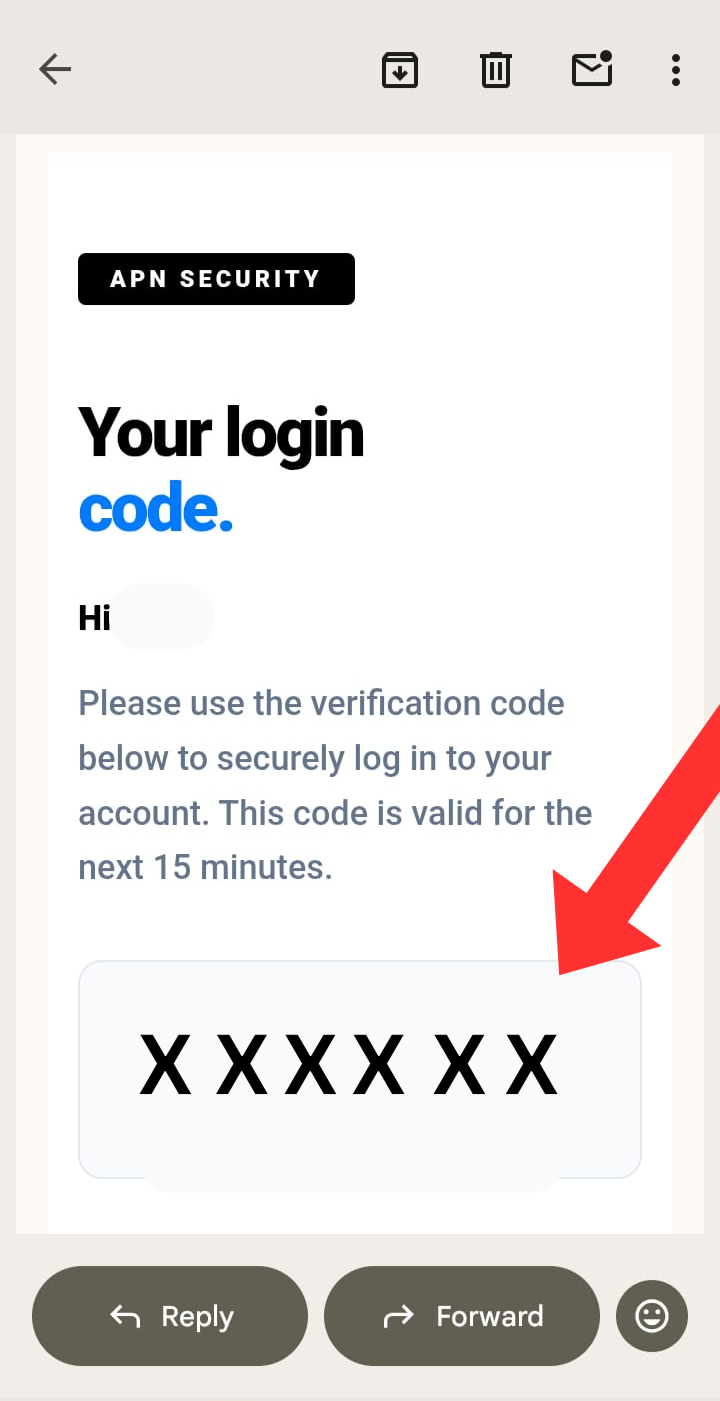
Come back to the APN site and sign in. This will trigger a 2-step verification process. Go back to your email inbox to find a new email containing your 6-digit code.
Step 5
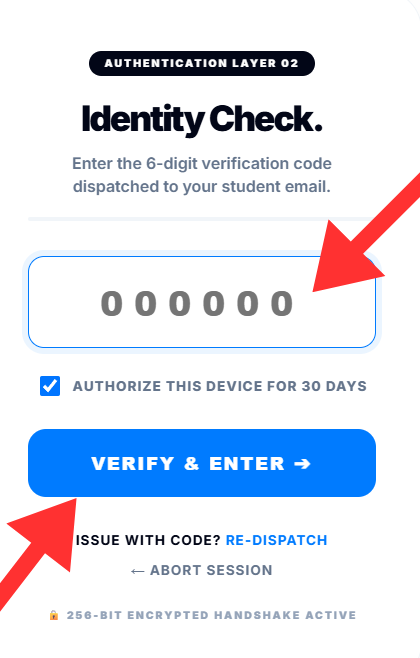
Enter the 6-Digit Code
Enter these 6 digits on the site and submit. Note: You must enter this code within 5 minutes. Once accepted, you are verified and good to go!